Accessing WordPress Management
Welcome to Nabtech's WordPress Hosting service! We're excited to help you launch and manage your WordPress-powered website. Follow these steps to begin your journey:
Step 1: Login to Your Nabtech Client Area
- Visit our website and click on the "Login" button.
- Enter your login credentials to access your Nabtech Client Area dashboard.
Step 2: Navigate to WordPress Hosting
- Once logged in, you'll see a list of your services. Click on the WordPress Hosting service you wish to manage.
- This will take you to the "Manage Account" page.
Step 3: Access WordPress Management
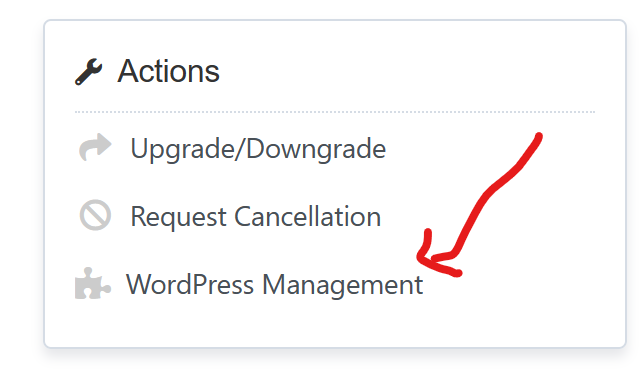
- On the "Manage Account" page, check the sidebar to find the "WordPress Management" section.
- Click on "WordPress Management" to access the WordPress management tools.
Step 4: Install WordPress
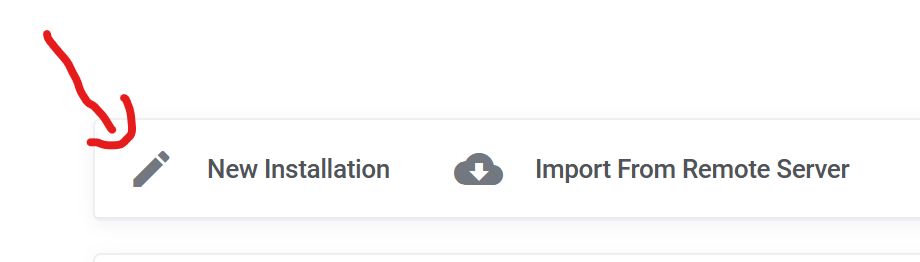
- In the WordPress Manager, you'll find a button or option to "Install New WordPress."
- Click on "Install New WordPress" to begin the installation process.
Step 5: Complete Installation Details
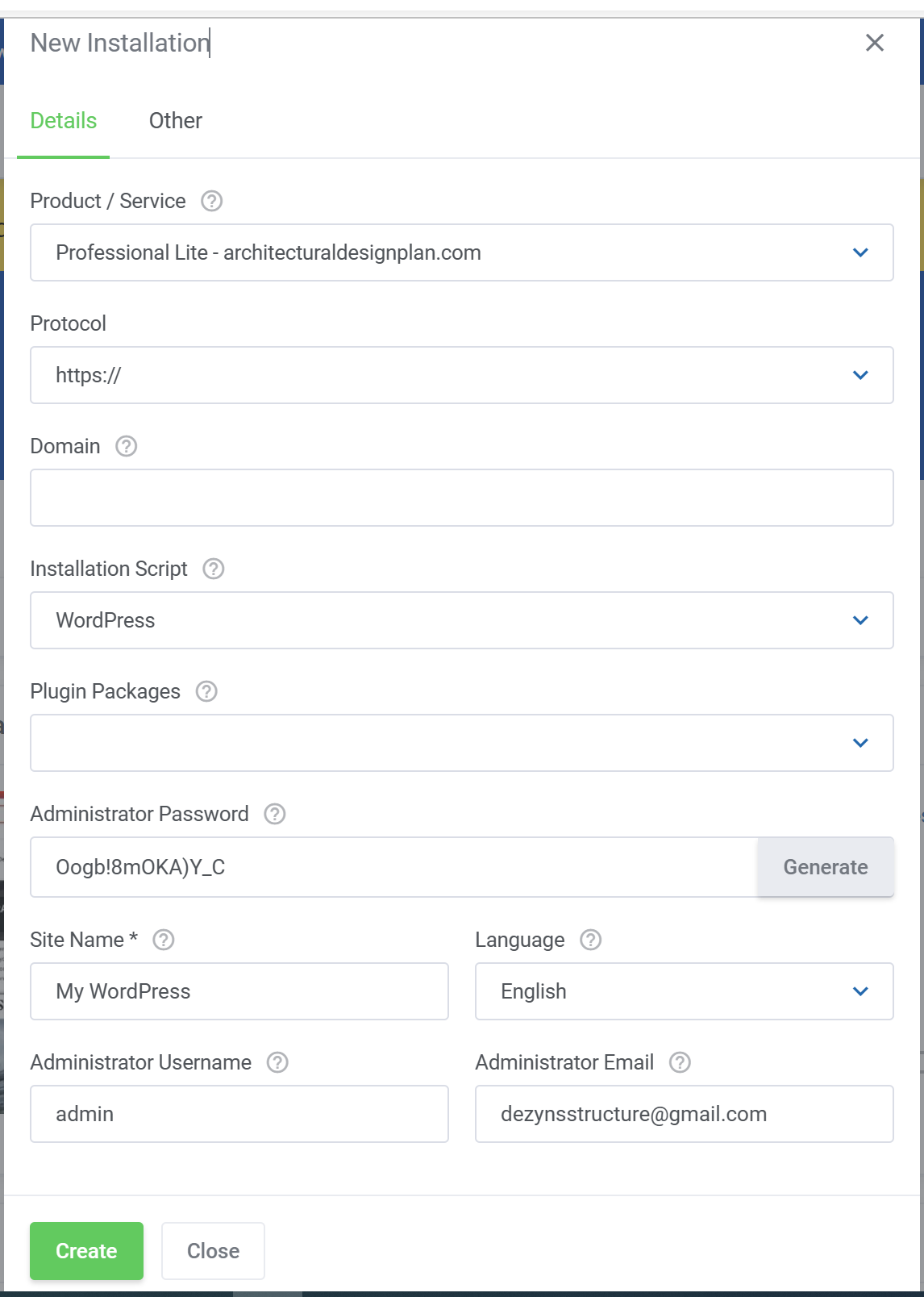
- Fill in the required details for your new WordPress installation, such as domain, directory, admin username, and password.
- You may also be able to select themes and plugins during the installation.
Step 6: Manage Your WordPress Installation
Once your WordPress website is installed, you can manage it effectively using the WordPress Manager:
1. Edit Installation:
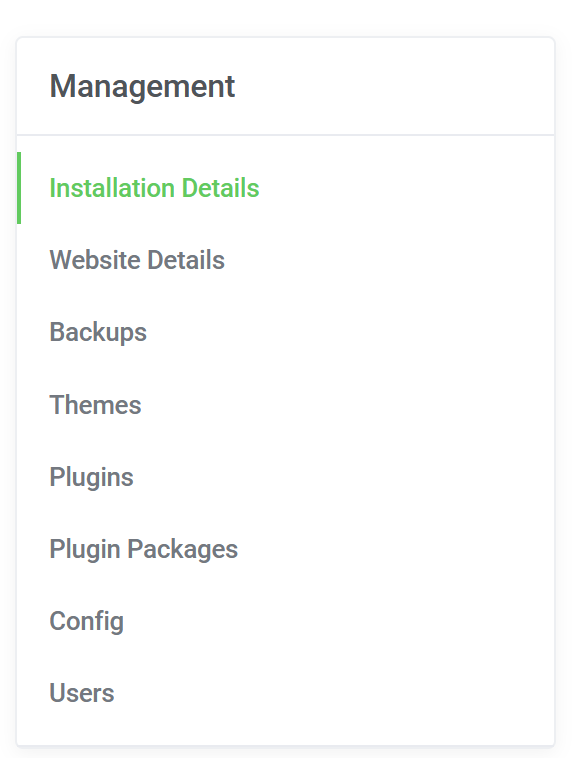
- Access the "Edit Installation" option to make changes to your WordPress settings and configuration.
- Manage your website details, backups, themes, plugins, users, and more.
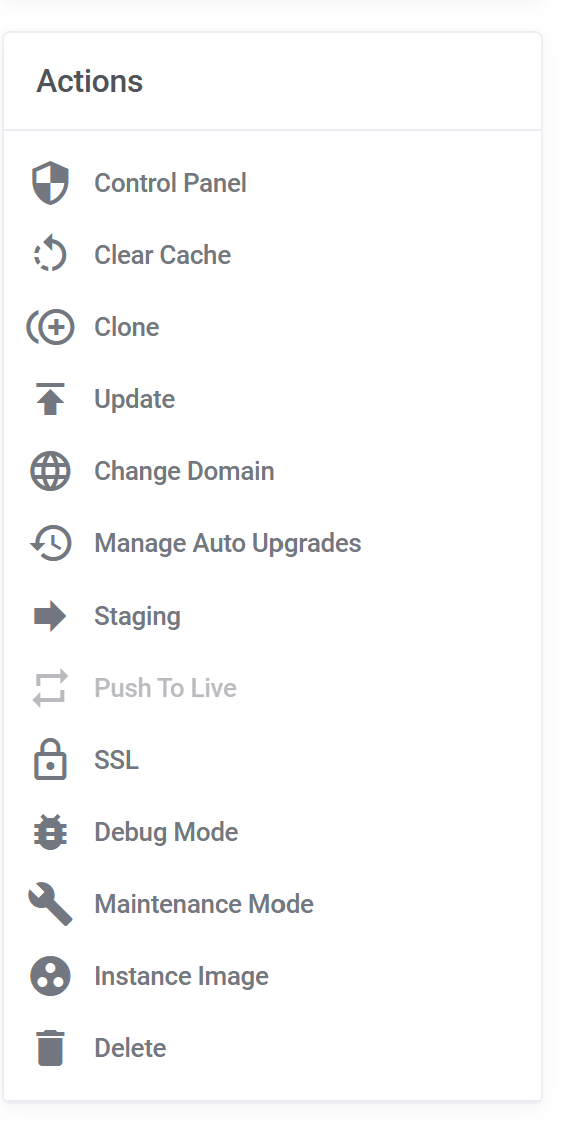
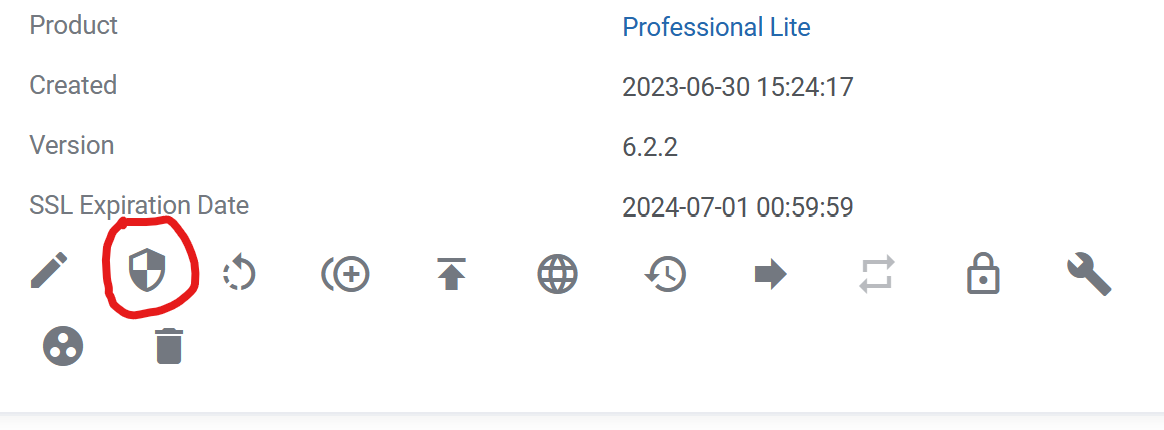
2. Login to WordPress Admin:
- Click on the "Login to WordPress Admin" button to access your website's WordPress dashboard.
- Here, you can create and manage content, customize your site's appearance, and more.
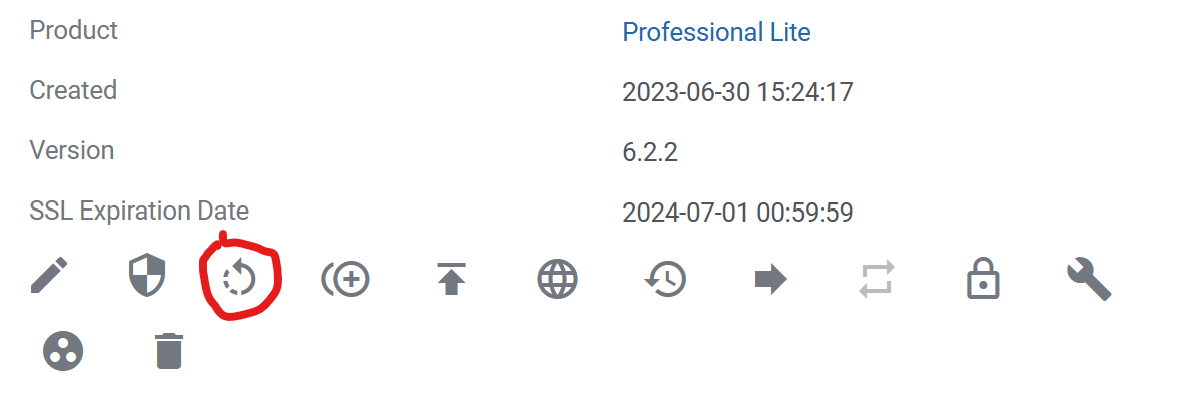
3. Clear Cache:
- Clear your website's cache to ensure optimal performance.
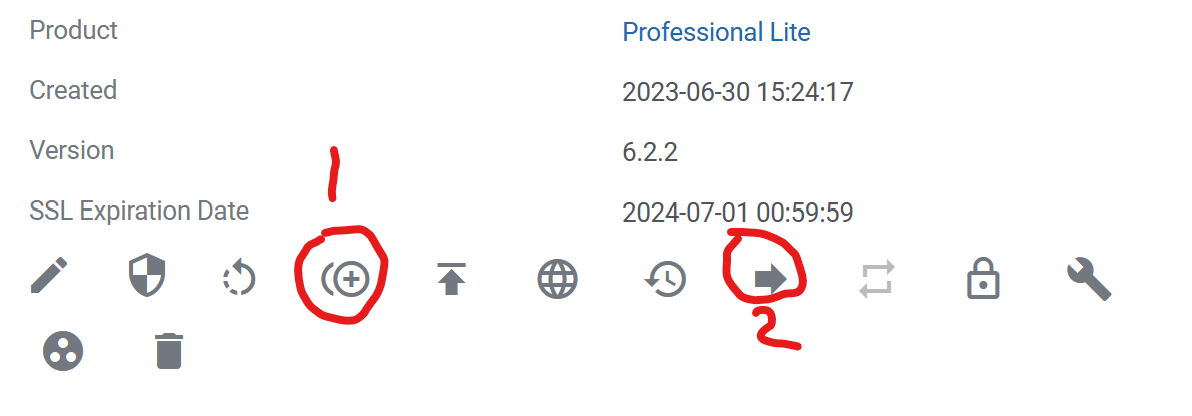
4. Clone and Staging:
- Create a clone or staging environment to test changes before implementing them on your live site.
5. Update and Manage:
- Keep your WordPress core, themes, and plugins up to date.
- Manage automatic updates and maintain your website's security and functionality.
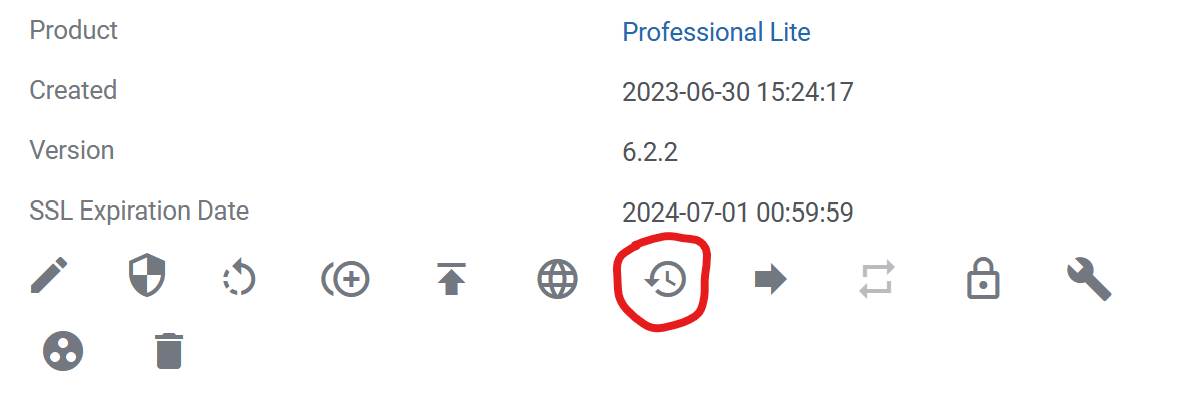
6. SSL and Security:
- Set up SSL certificates to secure your website.
- Enable ModSecurity for enhanced protection against threats.
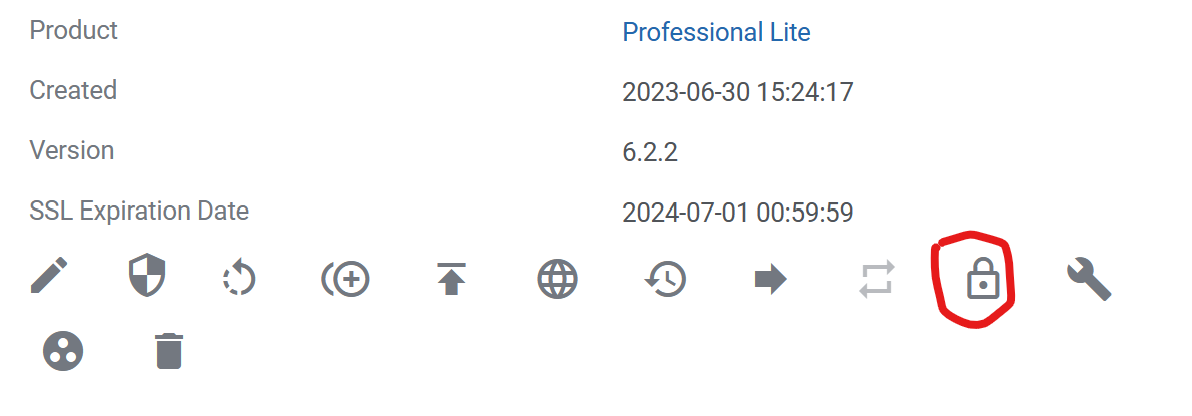
7. Maintenance Mode:
- Put your website into maintenance mode during updates or changes.
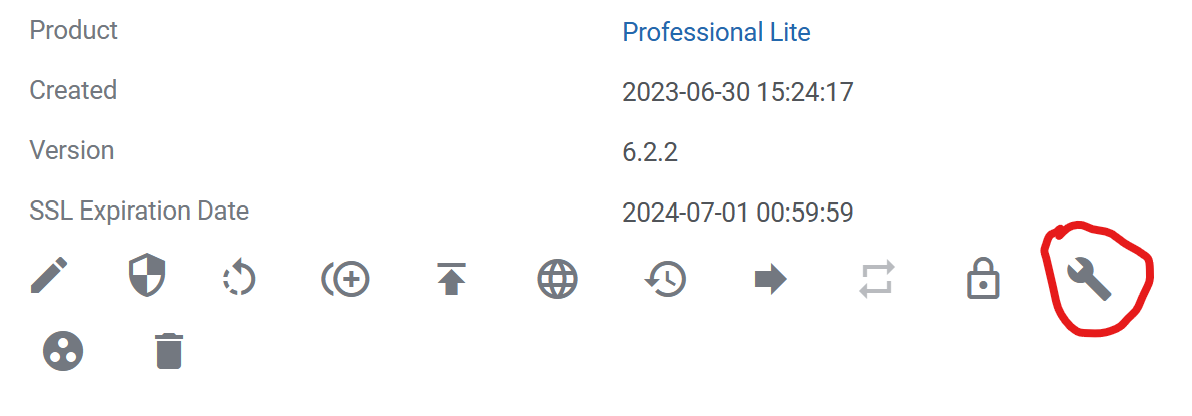
8. Change Domain:
- Easily change your domain name associated with the WordPress installation.
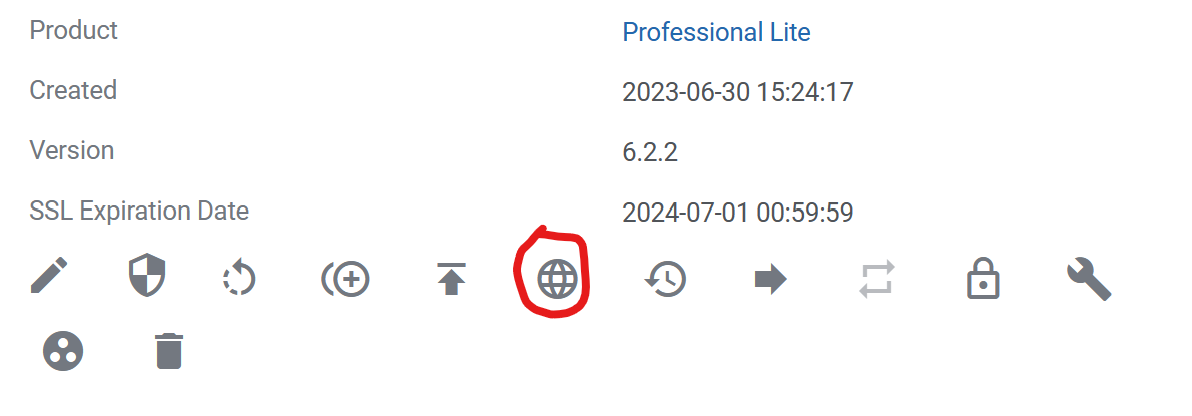
9. Push to Live:
- Move changes made on the staging site to your live website.
10. Debug Mode:
- Enable debug mode to troubleshoot issues and optimize your website.
Step 7: Explore and Create
Congratulations! You're now equipped with the tools to manage and optimize your WordPress website seamlessly. Explore the WordPress Manager to create content, customize your site, and ensure its security and performance.
Remember, if you have any questions or need assistance, our support team is here to help you every step of the way. Happy website building!
.png)
 (1).jpg)
 (1) (1).png)
 (1).png)
.jpg)
.jpg)

 (1).jpg)
.jpg)