Welcome to Nabtech! Our website offers an easy and convenient way to install our app as a Progressive Web App (PWA) on your devices, including iOS, Android, and desktop platforms. PWAs provide an app-like experience directly through your web browser, allowing you to access Nabtech with just a few simple steps. Follow the step-by-step guide below for each platform to install the Nabtech app as a PWA:
iOS (iPhone and iPad):
Step 1: Visit Nabtech Website Open Safari, the default web browser on iOS devices, and type "Nabtech Website " in the address bar. Press Enter to visit the Nabtech website.
Step 2: Click on the Install Button Upon arriving at the Nabtech website, you will see a prominent "Install PWA" button. Tap on the button to initiate the installation process.
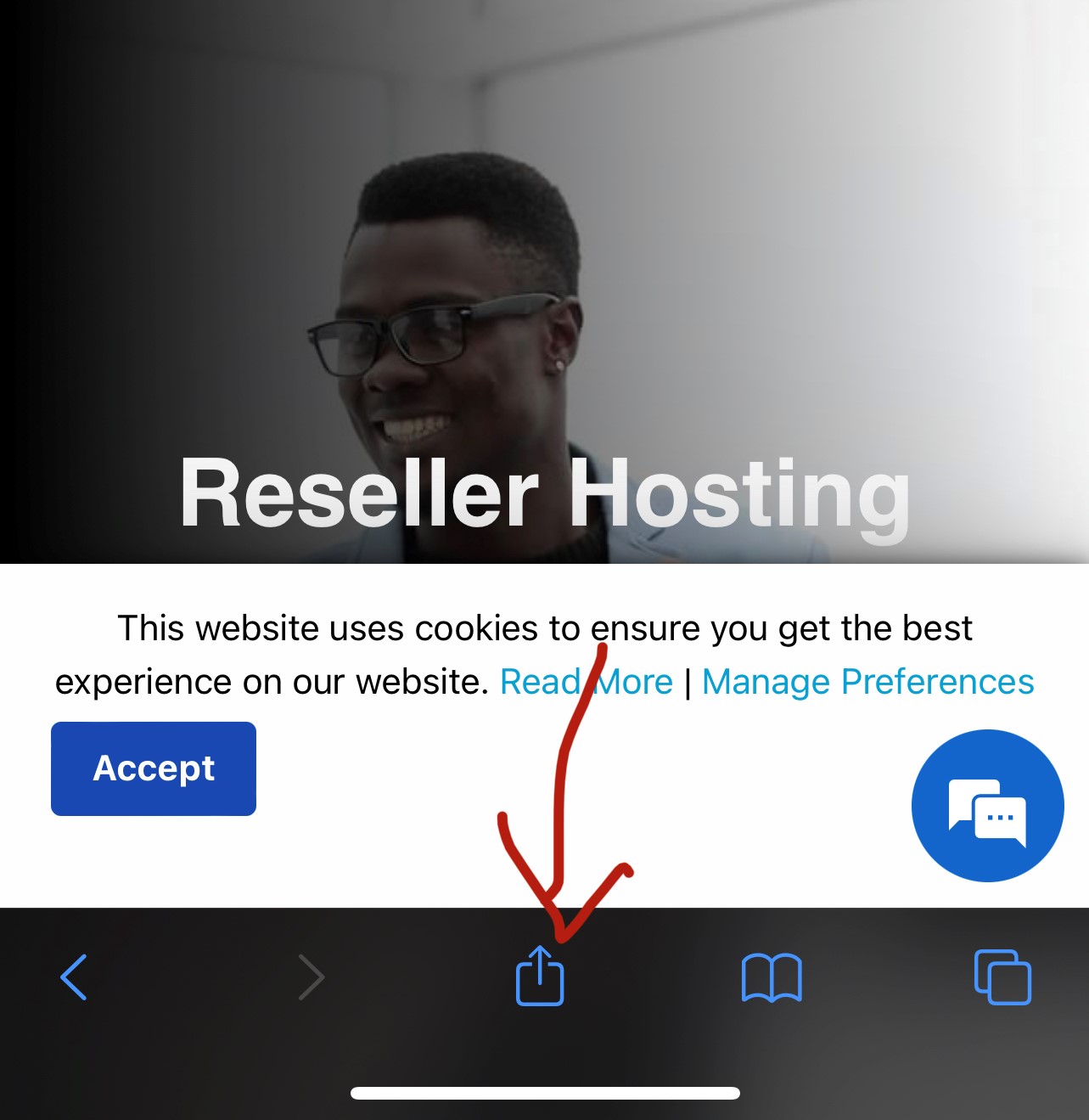
Step 3: Installation Prompt A prompt will appear, asking if you want to add the Nabtech app to your home screen. Tap the "Share" icon (box with an arrow pointing up) at the bottom center of the screen.
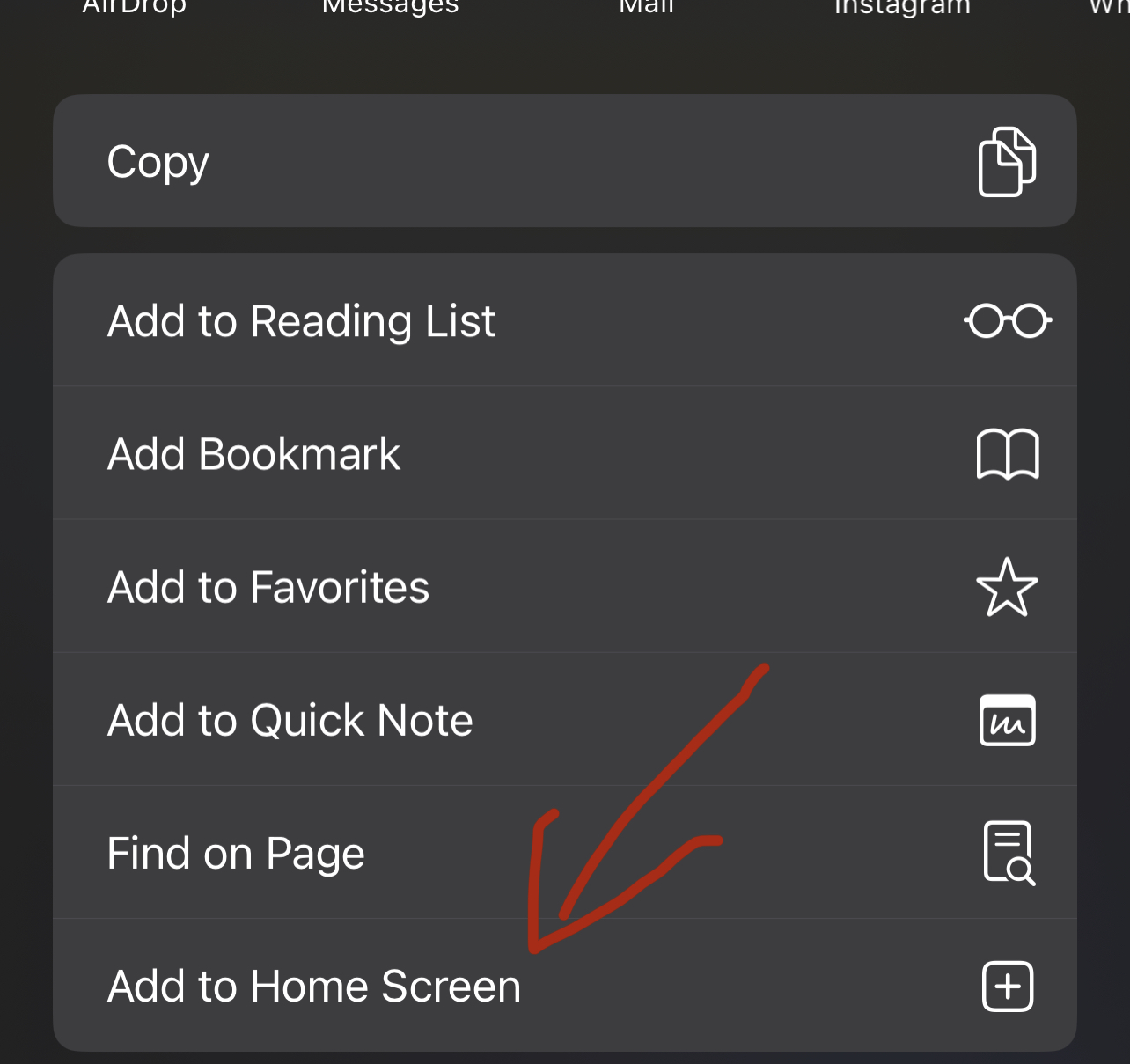
Step 4: Add to Home Screen In the share menu, scroll down until you find the "Add to Home Screen" option. Tap on it to proceed.
Step 5: Confirm the Installation Customize the app's name (if needed) and tap "Add" in the top-right corner of the screen to add the Nabtech app icon to your home screen.
Step 6: App Icon on Home Screen After installation, you will find the Nabtech app icon on your home screen. Tap it to launch the app, which will open in Safari as a standalone app.
Android Devices:
Step 1: Visit Nabtech Website Open your preferred web browser on your Android device and enter "Nabtech Website" in the address bar. Press Enter to visit the Nabtech website.
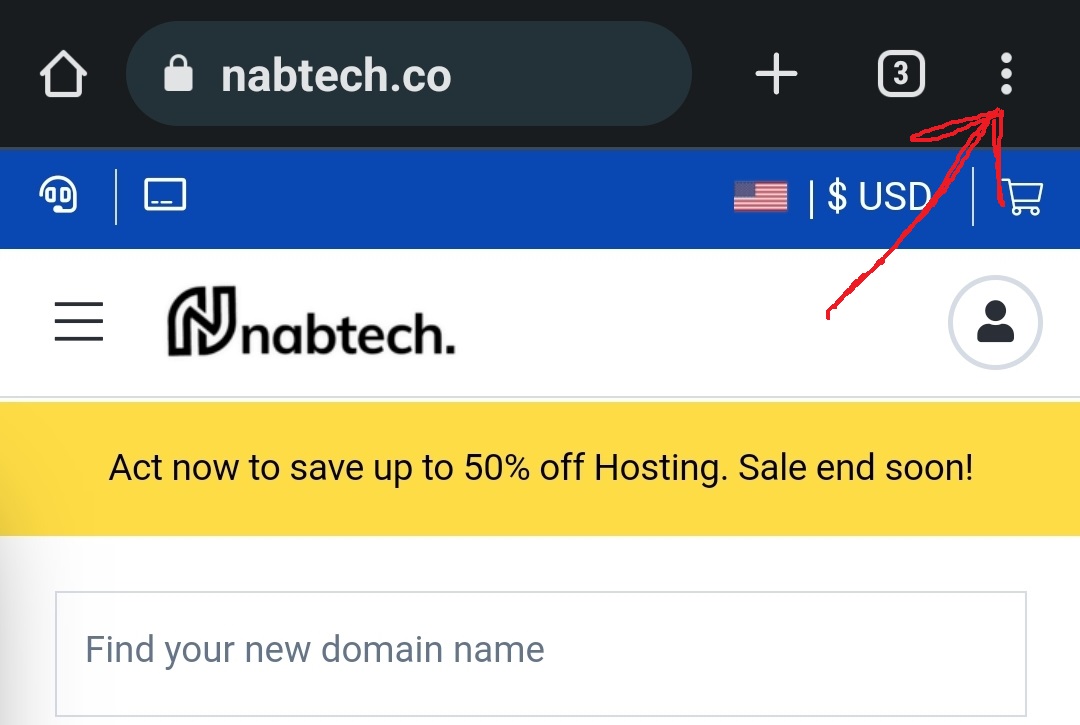
Step 2: Click on the Install Button Once you're on the Nabtech website, locate the "Install App" button and tap on it to start the installation process.
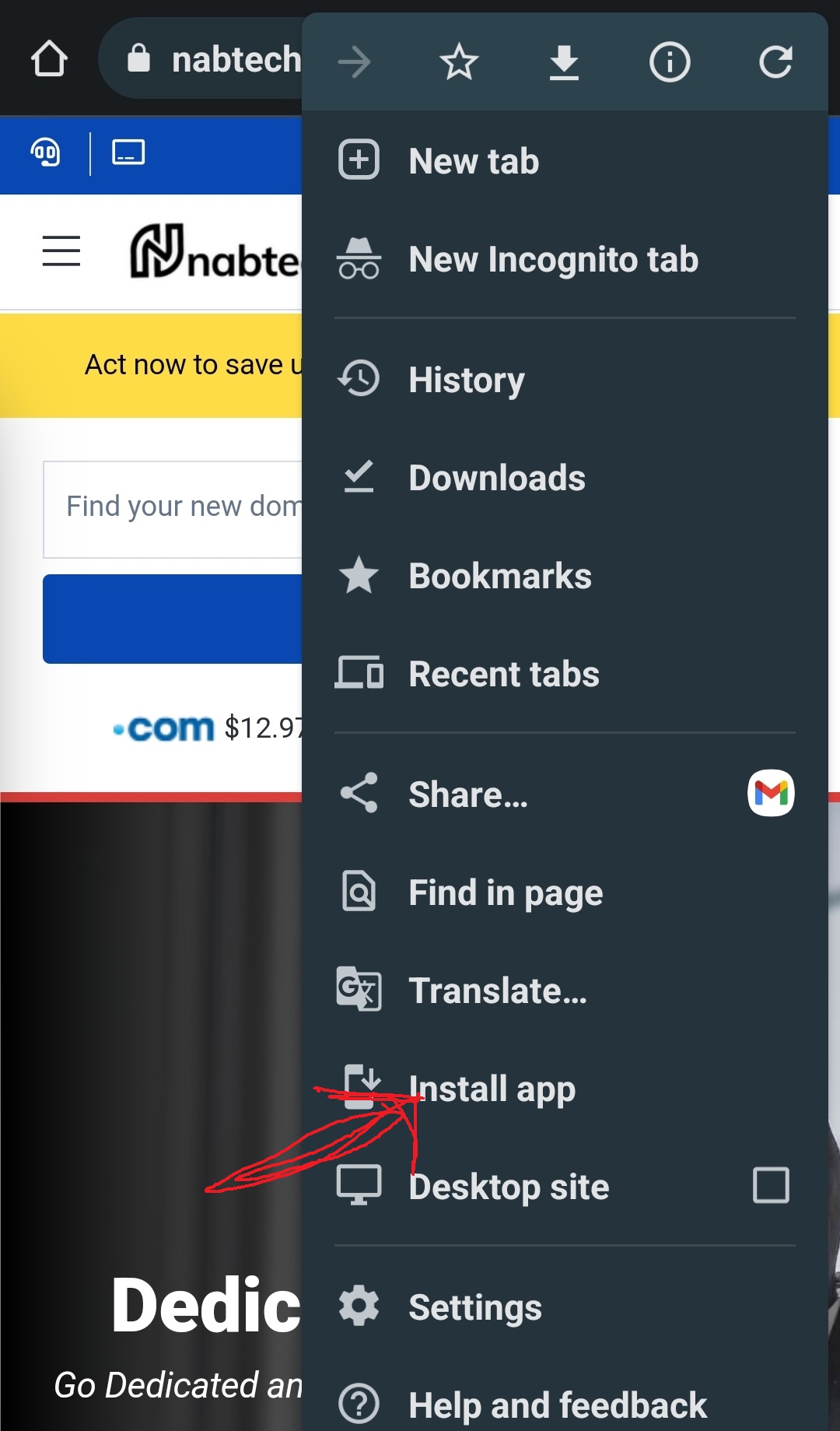
Step 3: Installation Prompt A prompt will appear, asking if you want to install the Nabtech app. Tap "Install" to proceed.
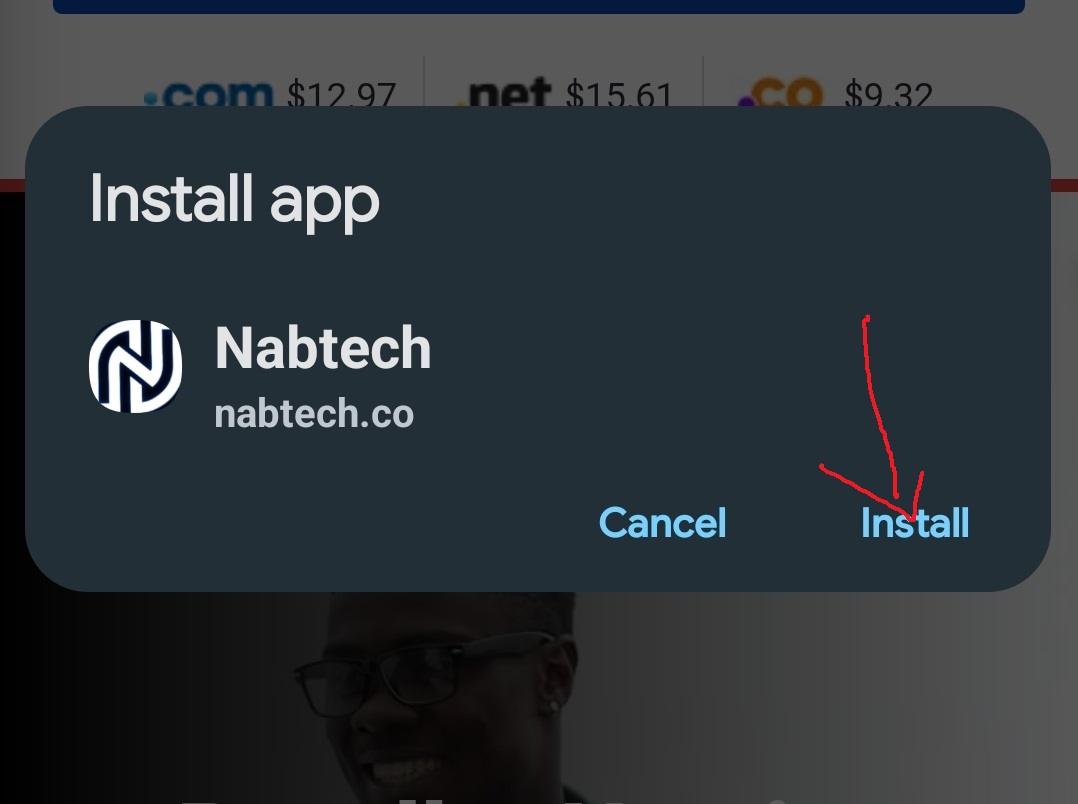
Step 4: Add to Home Screen After the installation is complete, a prompt will ask if you want to add the Nabtech app to your home screen. Tap "Add" to confirm.
Step 5: App Icon on Home Screen You will find the Nabtech app icon on your device's home screen. Tap it to launch the app, which will open in your browser as a standalone app.
Desktop (Windows, macOS, Linux):
Step 1: Visit Nabtech Website Open your preferred web browser (e.g., Chrome, Firefox, Edge, Safari) on your desktop computer.
Step 2: Click on the Install Button When you arrive at the Nabtech website, you'll see the "Install App" button on the address bar. Click on the button to begin the installation.
(Chrome)
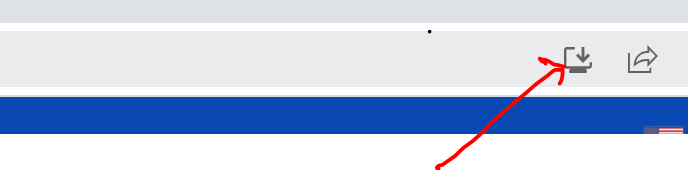
(Edge Browser)

Step 3: Installation Prompt A prompt will appear, asking if you want to install the Nabtech app. Click "Install" or "Add" to proceed with the installation.
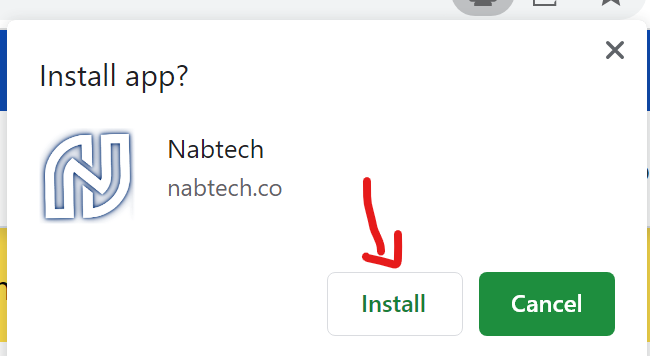
Step 4: App Icon on Home Screen After the installation is complete, you will see the Nabtech app icon on your desktop or in the browser's apps section. Click on the icon to launch the app, which will open in a new browser window as a standalone app.
Congratulations! You have successfully installed the Nabtech app as a Progressive Web App (PWA) on iOS, Android, and desktop platforms. Enjoy the seamless experience and easy access to Nabtech directly from your home screen or desktop. If you have any questions or need further assistance, feel free to reach out to our support team.
Happy using Nabtech App!
.png)
 (1).jpg)
 (1) (1).png)
 (1).png)
.jpg)
.jpg)

 (1).jpg)
.jpg)
