To create an email account with cPanel simply login to your control panel (Usually located at domain.com/cpanel or domain.com:2083)
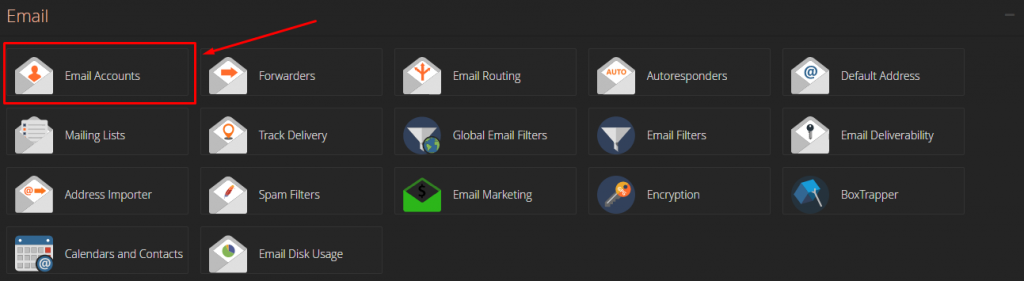
Once logged in, look for the “Email” Section and click on the “Email Account” setting, as illustrated below.
Once presented with the Email Accounts page, simply locate and click on the “Create” button towards the right of the page.
An email account creation form should now be generated, simply fill in the details/settings to your liking and click “create”.

- Username: The username of your email account, which is the email address basically. For example, username@domain.com
- Security: The password of your email account
- Storage Space: The total disk space that the email account is allowed to use from your total hosting accounts disk space.
- Create Folders for Plus Addressing: Basically, creates a new folder if the email address is addressed with a “+”. For example, an email sent to username+tom@domain.com will open a folder under “Tom” within the email account. We would recommend keeping this enabled.
.png)
 (1).jpg)
 (1) (1).png)
 (1).png)
.jpg)
.jpg)

 (1).jpg)
.jpg)